Chrome extension · beta
Answers to your Google searches, computed on your device
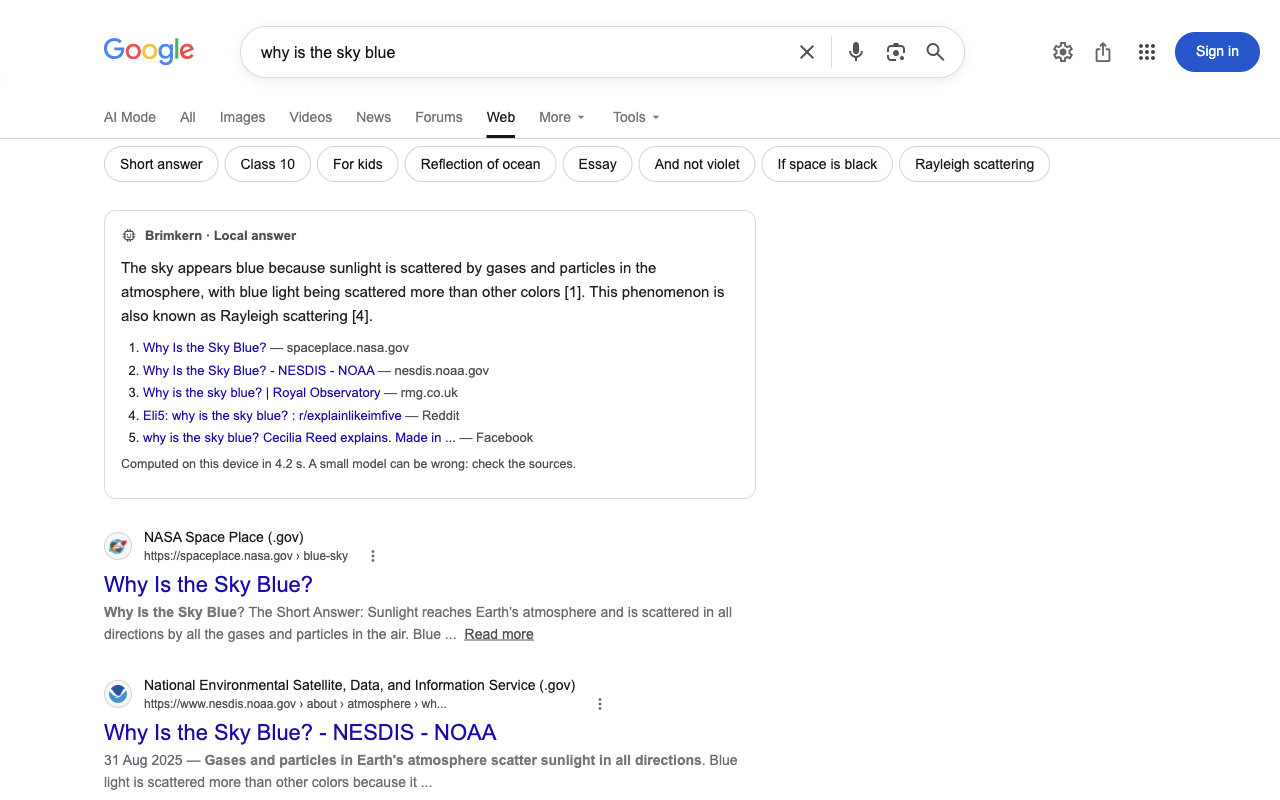
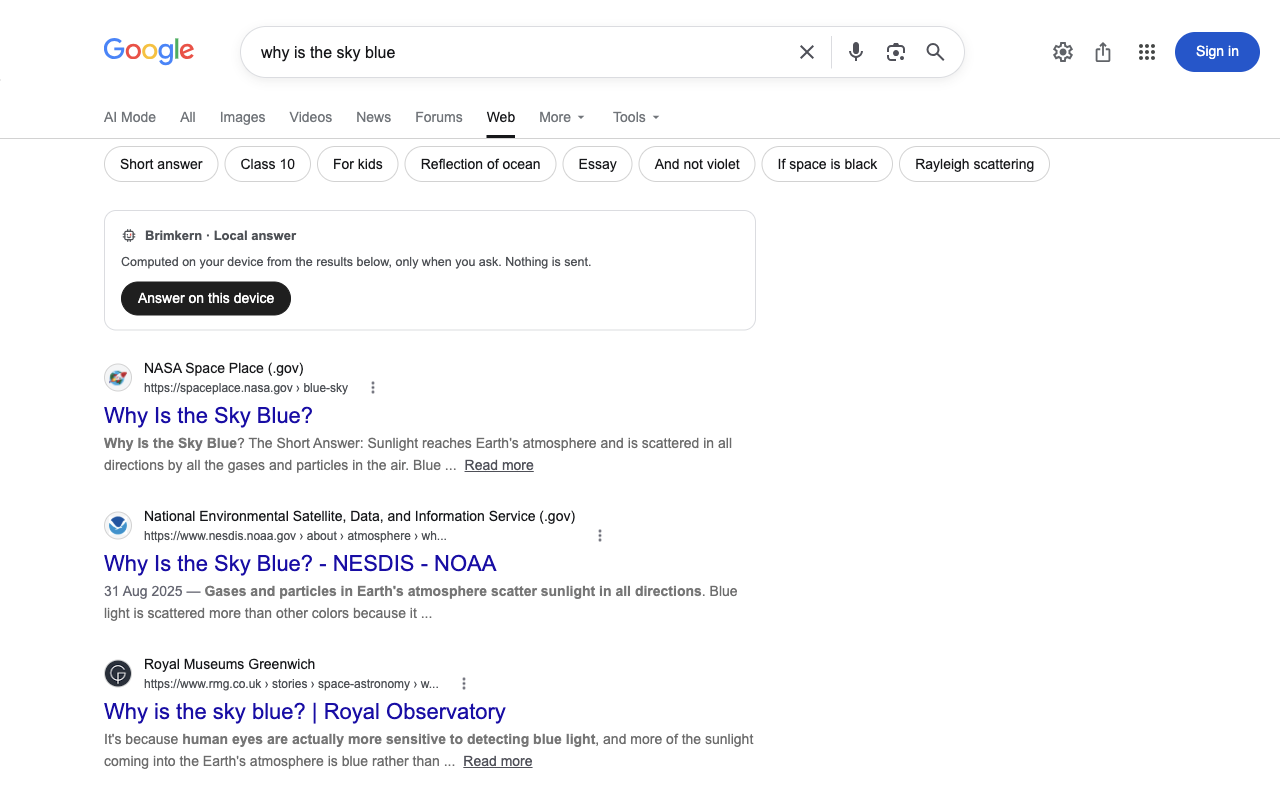
The extension stops asking Google for its AI Overview and puts a button in its place. Click it, and a model running on your own GPU answers from the results already on the page, with its sources. No click, no computation.
Status: beta. Not on the Chrome Web Store yet: install it from this page.
What it does
The AI Overview is not requested
Every web search goes out with Google’s own “Web” filter (udm=14), whose results page has no AI Overview. Hiding it would not be enough: by the time a page shows, Google has already generated it.
An answer only when you ask
Until you click, the extension makes no request and does not touch the GPU. Images, News and the other tabs work as usual.
Sources, always
Each answer lists the results it was built from, so you can check it in one click.
How it works
The model reads the titles and snippets of the results Google shows you, nothing else. It runs in a hidden page of the extension, so its weights are cached under the extension, not under google.com, and it closes itself after ten idle minutes to give the GPU memory back.
google.com/search?q=…  + udm=14
   │ results page, no AI Overview
   ▼
[ Answer on this device ]  ← nothing happens until the click
   │ titles + snippets already on the page
   ▼
Brimkern  (hidden extension page)
   │
   ▼
your GPU  (WebGPU, hand-written WGSL kernels)
   └─▶ answer + sources, in the page
Fitted to your machine
The model is chosen once, at the first download, from what the browser says about the device and the connection. A model already on disk is always reused: no second download because the Wi-Fi got better.
| When | Model | Download |
|---|---|---|
| Data saver on, connection under 1.5 Mbit/s, or 4 GB of memory or less | Qwen3 0.6B | 304 MB |
| Otherwise | Qwen3.5 2B | 1.28 GB |
| No WebGPU, or a software-only adapter | No answer, and the panel says why: on the processor it would be very slow. | |
The first download is never silent: the panel shows the model, its exact size and where it comes from (Hugging Face), and waits for your click.
Measured
44 right answers in 48, none wrong
Qwen3.5 2B, on 24 real Google results pages (14 in French, 10 in English), each answered twice. The other 4 were partly right: vague, or a detail off.
First use: about 7 min 40 s
Click to answer, including the 1.28 GB download; it depends on your connection.
After a browser restart: 16 to 22 s
The first answer of a session moves the model from disk to the GPU.
Then: 5.3 to 5.9 s
Per answer, of which 4.2 to 4.6 s of computation.
Measured on 2026-11-15 on an M-series Mac in Chrome. Quality: pages captured from Google, answers read one by one (scripts/e2e/serp-quality.mjs). Times: the extension bench, on a fresh profile for the first use (scripts/e2e/extension-google.mjs).
Privacy and energy
The answer is built from what is already on your screen: the extension sends no extra request, except the one-time model download from Hugging Face. Google still receives your search; that is what a Google search is.
What it reads
On Google results pages only: your search and the titles, addresses and snippets of the results. Nothing on any other site.
Where it is processed
On your device, by the model running on your GPU. It never leaves the browser.
What it stores
The model weights, in the browser cache, so they are not downloaded twice. No search history, no answer, no account.
What it sends
Nothing to Brimkern: no analytics, no tracking. One request type only: the model download from Hugging Face, after you agree to it, which like any download reveals your IP address to Hugging Face.
Questions about this policy: github.com/RomainKH/Brimkern/issues
On energy, two facts and one commitment. The AI Overview is not requested, and nothing is computed unless you click. What a local answer costs in watt-hours has not been measured yet; we will publish that figure once it is measured, not an estimate.
Limits
A small model can be wrong
On our benchmark, Qwen3.5 2B gave no wrong answer, but some stay vague (the products to use where steps were asked). The light model got 2 answers in 48 wrong. The panel says so under every answer, next to the sources.
Chrome and Google only
Other Chromium browsers and other search engines are not tested yet.
The “Web” results page
Without the AI Overview also comes without the rich panels of the “All” tab (images, maps, knowledge panel). The other tabs stay one click away.
Install the beta
Until the Chrome Web Store release, the extension is installed by hand, in Chrome 116 or later. It takes a minute.
- Unzip the file, and put the folder somewhere it can stay: Chrome loads the extension from it at every start.
- Open chrome://extensions and turn on “Developer mode” (top right).
- Click “Load unpacked” and select the unzipped folder.
- Search on Google: the button appears above the results.
A beta installed this way does not update itself: for a new version, download it again, replace the folder and press the reload arrow in chrome://extensions. To remove it, click “Remove” there.
The zip is the output of the public build. To build it yourself:
git clone https://github.com/RomainKH/Brimkern && cd Brimkern
npm install
npm run build:extension
Brimkern: open WebGPU engine, built by Romain Khanoyan. Local AI, WebGPU, on-device engines.